
How to know when a countertop quote was viewed or accepted
How fab shops know when a client opened or accepted a quote—escape PDF/WhatsApp silence with view and accept status, follow-up, and one live version.
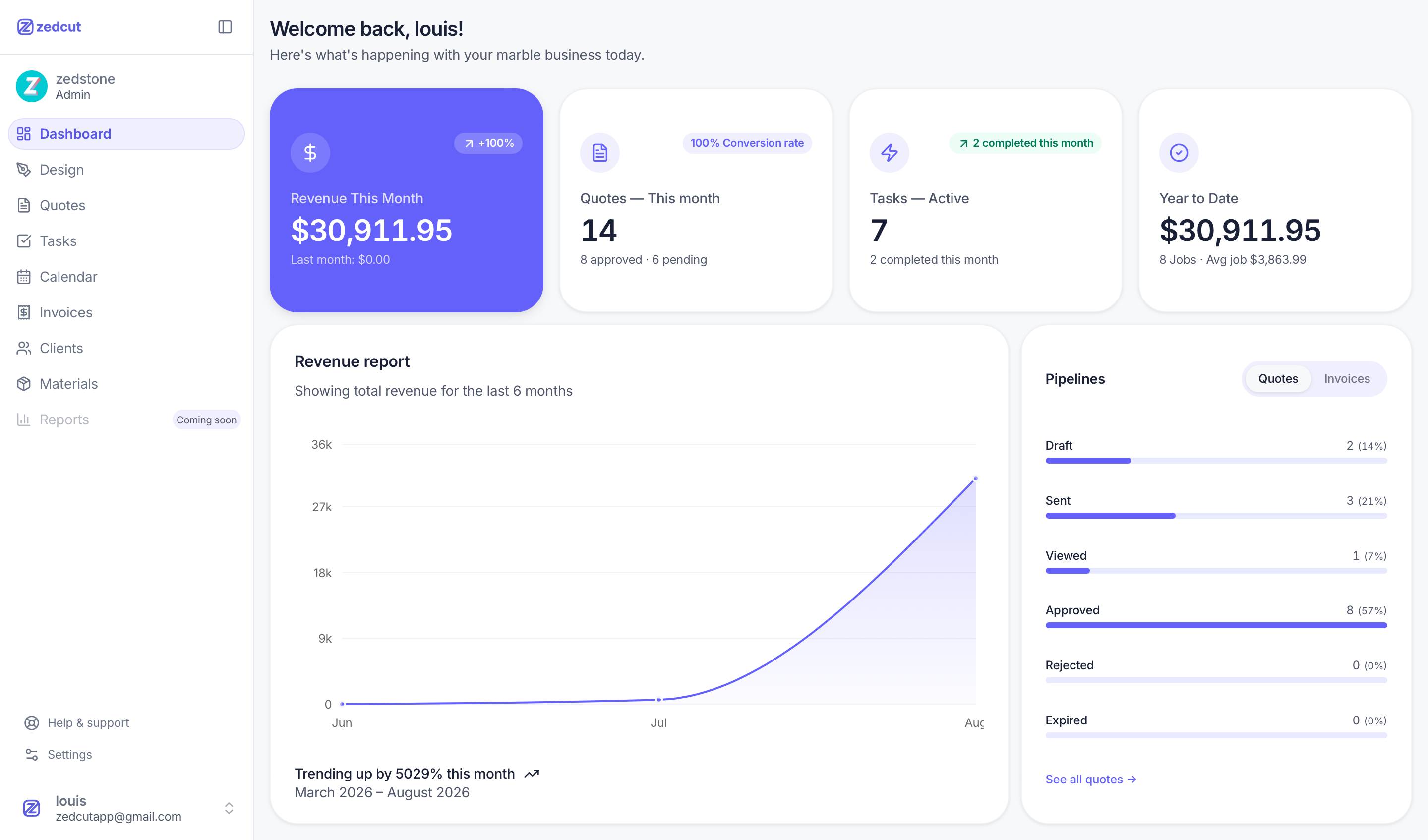
You sent the quote. The PDF sits in email or WhatsApp next to island photos. Two days pass with no reply. Did they open it? Compare you to another shop? Hit spam? With a static PDF, your office is guessing at the most important moment in the deal.
This guide is for fab shops that already know how to price a kitchen. The pain is narrower: knowing whether a quote was viewed or accepted, and what to do next. For the full draw → price → PDF → approve path, see countertop quoting software and client approval. Here we stay on status visibility, follow-up, and version control after send.
The PDF / WhatsApp black hole
Most shops send a quote as a PDF attachment or WhatsApp file. That feels fast, but creates a black hole: you know you pressed send, not if the file opened; looks good in chat is hard to attach to a line-item total and design plan; revised filenames mean the client may read version 2 while your cutter prints version 4; and nobody owns the follow-up clock. That is a status and ownership problem. Until the shop can see sent → viewed → accepted/refused, every open quote is a guessing game.
What viewed and accepted mean
Sent means the client received a professional quote (PDF and/or secure link) tied to one job. Viewed means someone opened the document or link — a buying signal, not a contract. Accepted means a clear yes on that specific quote, typically via an accept link with their name. Refused means a clear no so the pipeline stays honest. Viewed without accepted is where smart follow-up lives. Accepted without a locked version is where cut mistakes start.
Signals your shop needs after send
You need five shared signals, not a consumer analytics suite: (1) which quote version is live — one job, one current document; (2) whether it was opened — not seen yet vs seen and sitting on it; (3) whether it was accepted or declined — decision on the same total and design; (4) who owns follow-up — first nudge next business day after a view, not the same hour; (5) what happens after accept — deposit if used, then invoice and schedule without retyping. If those live only in someone's inbox, hallway questions never stop.
Process checklist
Before you send: generate the quote from the same job as the drawing (and nesting if used); lock line items, design plan, taxes, optional deposit; prefer email with PDF + accept/decline link when you need status; assign a follow-up owner before the message goes out.
Right after send: mark the quote sent on the job and note the date. Silence for 48–72 hours without a view is a different play than silence after two opens.
When viewed: do not call five minutes later. Next business day (or within about 48 hours of the open), send a light nudge — confirm receipt, offer to walk edges, sink, or deposit. If multiple people open it, offer to answer questions for anyone else reviewing.
When accepted: confirm the accepted version is what you will fabricate; collect deposit if you use one; convert toward invoice / Job Packet without rebuilding lines; move template or install onto the shared schedule from the same job.
When refused — or long silence after views: log the outcome, ask one clarifying question if useful, and do not keep three almost quotes alive with no status.
Version control
Tracking opens is useless if the client accepted the wrong document. Keep one current quote per job; revisions create a new sent document with the accept link on the current version; client yes must reference the document they opened; after accept, fabrication reads from that approved packet. Shops leaving Excel and chat often hit this wall first — see from Excel to countertop shop workflow.
How software helps
Instead of a lone PDF, send a quote tied to the job: a PDF for their records plus a secure accept/decline link without a client account; visibility when the client opens and when they accept or refuse; status draft → sent → viewed → accepted/refused for the whole team; convert accepted quotes to invoices without retyping; optional deposit with the send; drawing, nesting, and quote lines on one job. That is status visibility — not a promise every open converts. The win is fewer hallway guesses, cleaner follow-up, and a yes on the right document.
Where Zedcut fits
Zedcut is built for countertop shops that want draw → nest → quote → client approval → schedule → invoice in one place. As described on zedcut.com: generate quotes from the job; email a professional PDF with a link to accept or decline; see when clients open the quote; secure link with no client account; convert approved quotes to invoices; optional deposit %; logo on PDFs; EN/FR product; CAD billing; Essential monthly with a 14-day free trial (card required). Explore features, pricing, or contact. No invented open rates or ROI.
FAQ
Is email opened the same as quote viewed? Not always. Email opens can fire from a preview pane. A quote view means someone opened the document or hosted link — the stronger follow-up signal.
Should we still send a PDF with an accept link? Yes for many shops. Clients want a PDF on file; the link carries the tracked decision. Keep both on the same job version.
How fast should we follow up after a view? Not the same hour. Prefer the next business day or within about 48 hours. After several quiet days with multiple views, a short clarifying message is fair.
What if they accept in WhatsApp but never click Accept? Treat chat yes as a prompt to get formal accept on the current quote link — or update status only after confirming exact total and design. Informal yes without a locked document is how wrong islands get cut.
Does view tracking replace a CRM? For many small shops, quote status on the job plus client history is enough. You need shared visibility more than a separate CRM that does not know your drawing or nest.
If open quotes disappear into PDF and WhatsApp silence, fix status first: one live quote per job, viewed vs accepted visibility, and a follow-up owner. When you want that path connected to drawing and invoicing, start a free trial on Zedcut or request a demo.